
Custom spear graphics are supported for these materials:
WOODEN_SPEARSTONE_SPEARCOPPER_SPEARIRON_SPEARGOLDEN_SPEARDIAMOND_SPEARNETHERITE_SPEAR
Spear models
Spears have two model states:
normal: default model used outside the player's hand.in_hand: model displayed while the spear is held.
The normal model is required. If in_hand is omitted, ItemsAdder uses normal for both states.
Using custom models
info:
  namespace: my_spears

items:
  ruby_spear:
    name: Ruby Spear
    material: DIAMOND_SPEAR
    graphics:
      models:
        normal: item/ruby_spear
        in_hand: item/ruby_spear_in_hand
Place the model files here:
contents/my_spears/models/item/ruby_spear.json
contents/my_spears/models/item/ruby_spear_in_hand.json
Use custom models when you need a 3D model or custom display transformations.
Creating a 3D spear in Blockbench
Open Blockbench and create/open a Java Block/Item model.
1. Build the spear upright
- Build the spear vertically.
- Make the handle point down and the tip point up.
- Keep the shaft in the middle of your workspace.
- A long spear can extend outside the normal
0to16box. Do not squeeze it to fit.
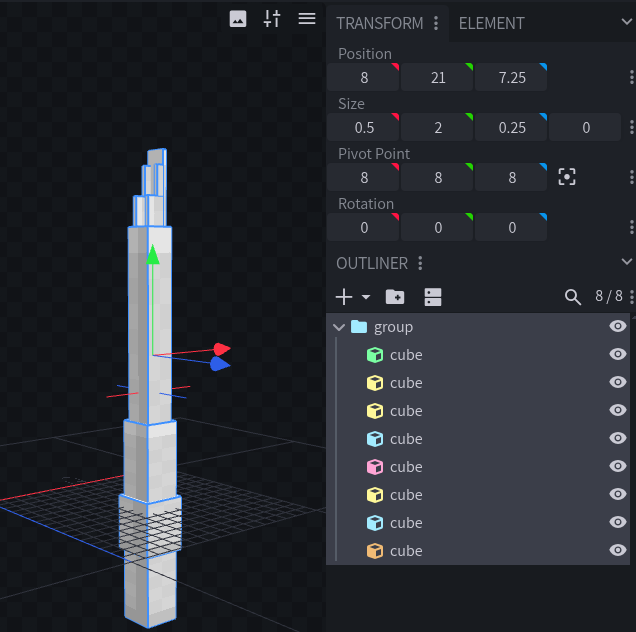
2. Move the spear to the center
Imagine a pin at [8, 8, 8], in the middle of the workspace. Minecraft holds and turns the complete spear around this point; [0, 0, 0] is only a corner.
Select every cube in the Outliner, then use the Move tool to move the whole spear until its middle is around [8, 8, 8]. Keep all cubes selected so the shape does not change.
Check that the shaft is still vertical and the tip points up. ItemsAdder changes how the spear is shown in hand, but it does not reposition the cubes for you.
3. Set the in-hand view
Rotate one cube only when that cube is actually meant to be angled, like a blade or decoration.
For the whole spear orientation, use the Blockbench Display tab and set these values:
| Blockbench preview | Rotation |
|---|---|
| First-person right hand | [-20, 90, 10] |
| First-person left hand | [-20, -90, -10] |
| Third-person right hand | [5, 270, 5] |
| Third-person left hand | [5, -270, -5] |
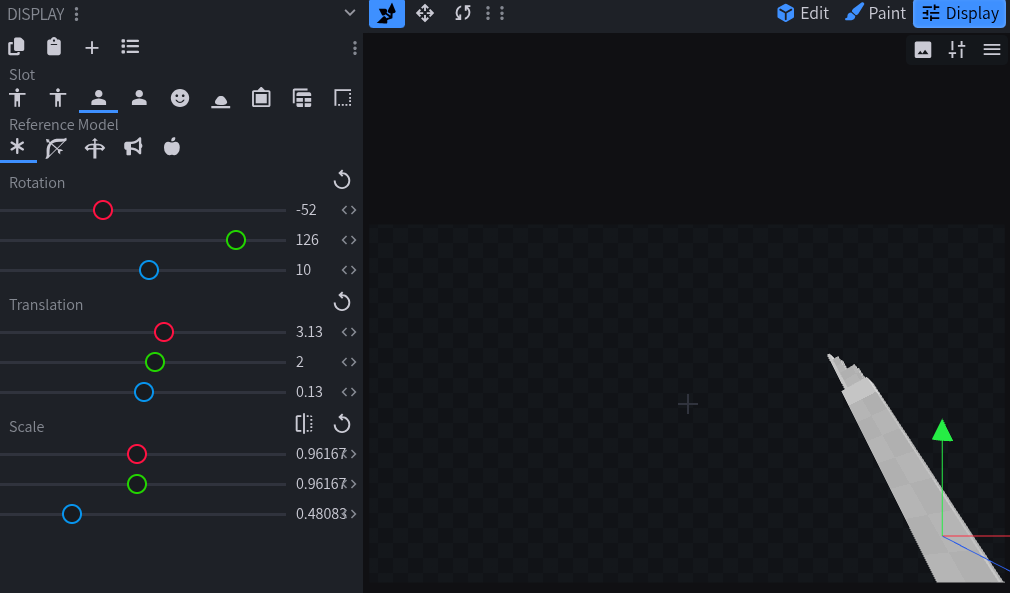
Then adjust only translation and scale in the preview.
Exact measurements (optional)
- Keep shaft centered on
X = 8andZ = 8, whole model aroundY = 8, and tip toward+Y.
For length L:
- minimum Y =
8 - L / 2 - maximum Y =
8 + L / 2
Length examples:
| Length | minimum Y | maximum Y |
|---|---|---|
| 16-unit spear | 0 | 16 |
| 24-unit spear | -4 | 20 |
| 32-unit spear | -8 | 24 |
For shaft width W:
- minimum X =
8 - W / 2 - maximum X =
8 + W / 2 - minimum Z =
8 - W / 2 - maximum Z =
8 + W / 2
Example 32-unit dimensions (only):
| Part | From | To |
|---|---|---|
| Shaft | [7.5, -8, 7.5] | [8.5, 20, 8.5] |
| Spear head bounding box | [6.5, 20, 6.5] | [9.5, 24, 9.5] |
| Centering (X/Y/Z) | X | Y | Z |
|---|---|---|---|
| Before bounds | -0.5..2.5 | 0..32 | -0.5..2.5 |
| Model center | 1 | 16 | 1 |
| Move by | +7 | -8 | +7 |
| After bounds | 6.5..9.5 | -8..24 | 6.5..9.5 |
| New center | 8 | 8 | 8 |
Offsets to center the whole spear:
- offsetX =
8 - (minimum X + maximum X) / 2 - offsetY =
8 - (minimum Y + maximum Y) / 2 - offsetZ =
8 - (minimum Z + maximum Z) / 2
When recentering, apply the same offset to both From and To of every selected cube.
Using textures only
ItemsAdder can generate both spear models automatically from textures.
info:
  namespace: my_spears

items:
  ruby_spear:
    name: Ruby Spear
    material: DIAMOND_SPEAR
    graphics:
      textures:
        normal: item/ruby_spear
        in_hand: item/ruby_spear_in_hand
Place the textures here:
contents/my_spears/textures/item/ruby_spear.png
contents/my_spears/textures/item/ruby_spear_in_hand.png
The generated in_hand model automatically uses the correct vanilla spear display transformations.
Using one texture
You can use the same texture for both states:
graphics:
  texture: item/ruby_spear
ItemsAdder generates separate models for normal and in_hand, both using the specified texture.
Custom icon
Use icon to provide a separate inventory texture:
graphics:
  icon: item/ruby_spear_icon
  textures:
    normal: item/ruby_spear
    in_hand: item/ruby_spear_in_hand
Place it here:
contents/my_spears/textures/item/ruby_spear_icon.png
The icon is used in the GUI, on the ground, in item displays and on shelves.
Testing
Reload ItemsAdder and regenerate the resource pack:
/iareload
Get the item:
/iaget my_spears:ruby_spear