
What is the difference between self-host and the other methods?
The difference is that with self-host you can download the pack directly from your server without having to upload it to a website each time you make a small change.
self-host is really useful when you are configuring the resourcepack on your test server on your PC.
You just have to use command /iazip and you'll see changes applied in-game almost instantly.
Configuration
- Check in your hosting service panel if you can get an additional port; if not, please ask your hosting service support to provide you with one.
For example on Pterodactyl:
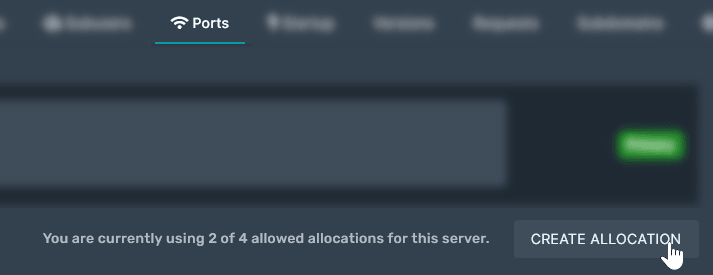
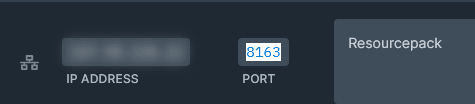
- After you obtained a new port you can open
config.ymland set it like this:
  self-host:
    enabled: true
    server-ip: '127.0.0.1'
    pack-port: 8163
- You have to replace
127.0.0.1with your server IP - And replace
8163with the new port you obtained.
For example if my IP is 123.456.789.0 and my additional port is 8163 I will set it like this:
  self-host:
    enabled: true
    server-ip: '123.456.789.0'
    pack-port: 8163
Last step
After you configured the config.yml file you just have to run the /iazip command to refresh the zip file and start the hosting.
Continue installation if you need
First Install(optional) Cloudflare configuration
Create a new DNS record
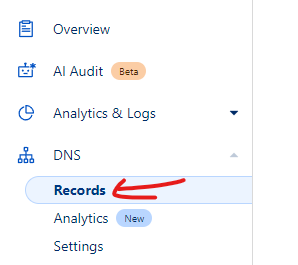

- type:
A - name:
pack(for example) - IPv4 address to your server IP, where the pack is hosted (ItemsAdder is running)
- Proxy status:
Proxied - Click Save
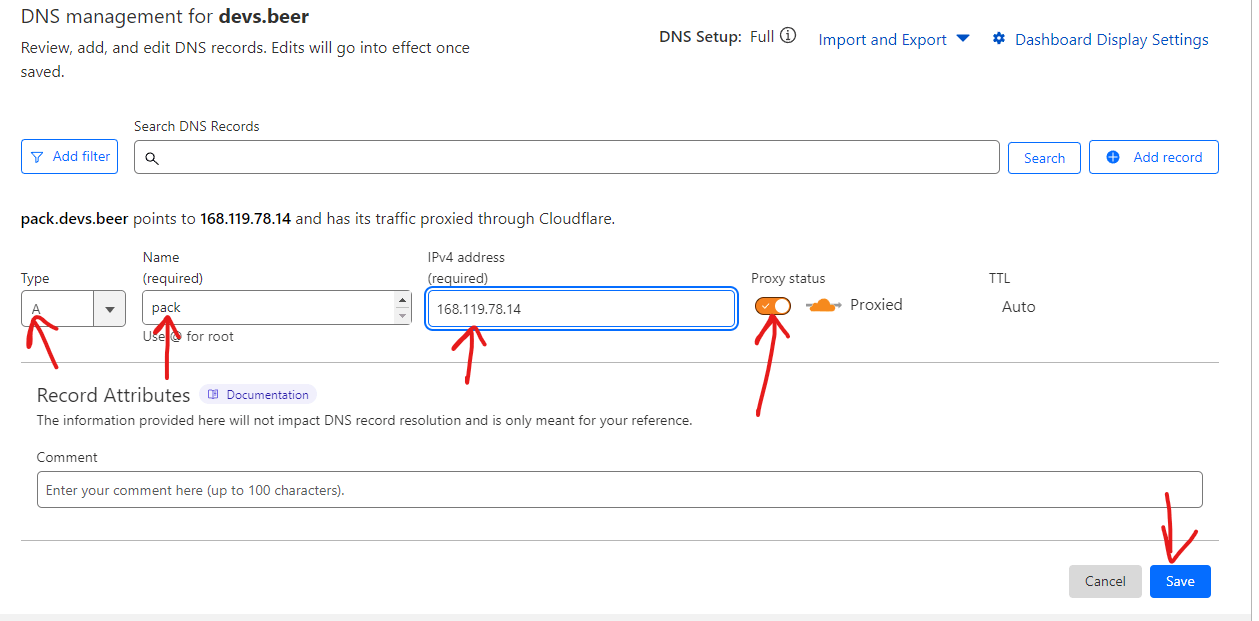
Create a new Origin rule
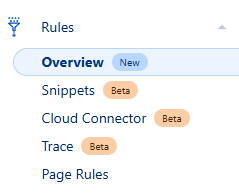
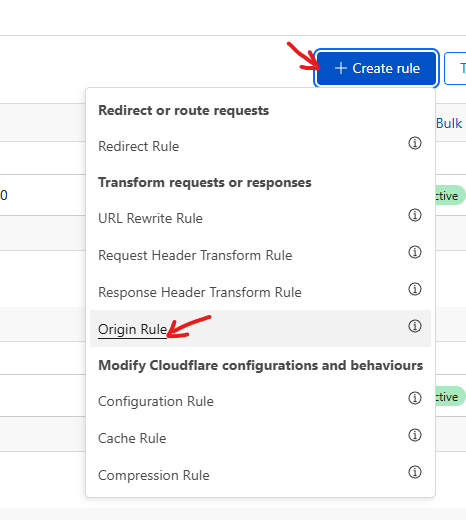
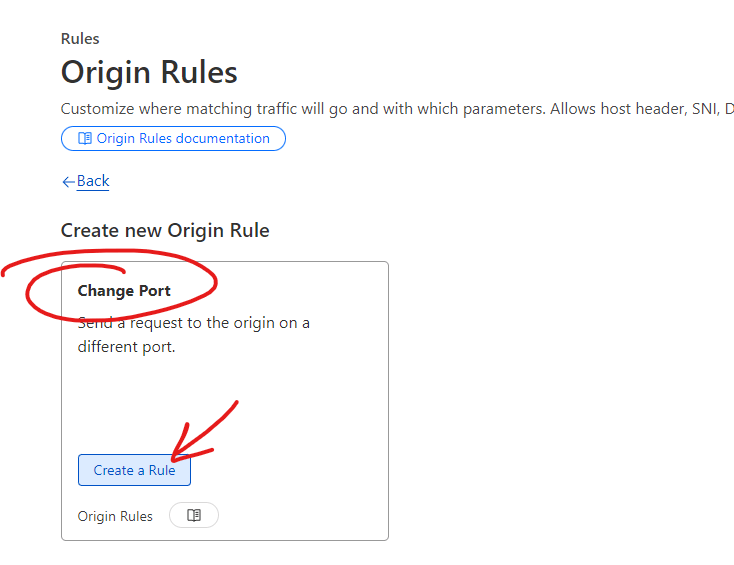
Select "Change Port" and "Create a Rule".
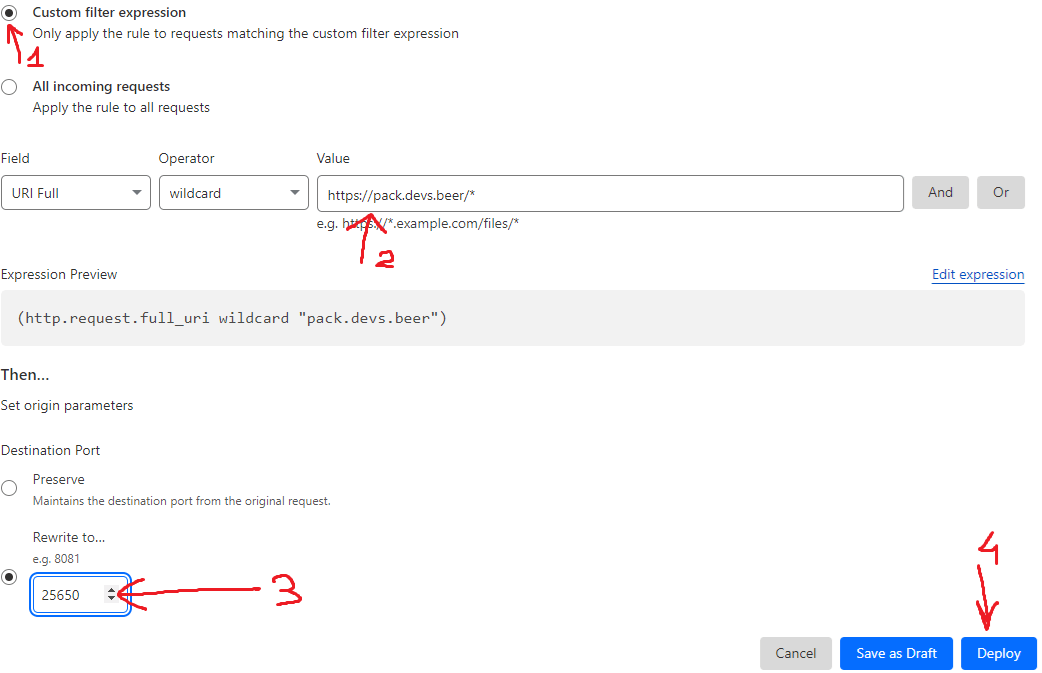
Select "Custom filer expression" and complete as shown in the screenshot changing the values based on your setup.
Configure ItemsAdder
- set
server-ipto your new pack address - set
pack-portto your resourcepack port - set
append-portto false - try to access the
self-host:
  enabled: true
  server-ip: 'https://pack.devs.beer'
  pack-port: 25650
  append-port: false